Nekocord Installer
For this guide we be using MacOS but this process is the same for every OS.
Before starting close the discord app fully, this includes from the taskbar if on Windows or Linux. To confirm its fully closed do one of the following depending on your OS:
MacOS Instructions
Open Activity Monitor and search for Discord, and select the main Discord process and hit the stop button in the top of the windowWindows Instructions
Right-click the taskbar and select "Task Manager". In the "Processes" tab, find Discord, select it, and click "End Task".Linux Instructions
Open a terminal and run the command `pkill Discord` to terminate the Discord process.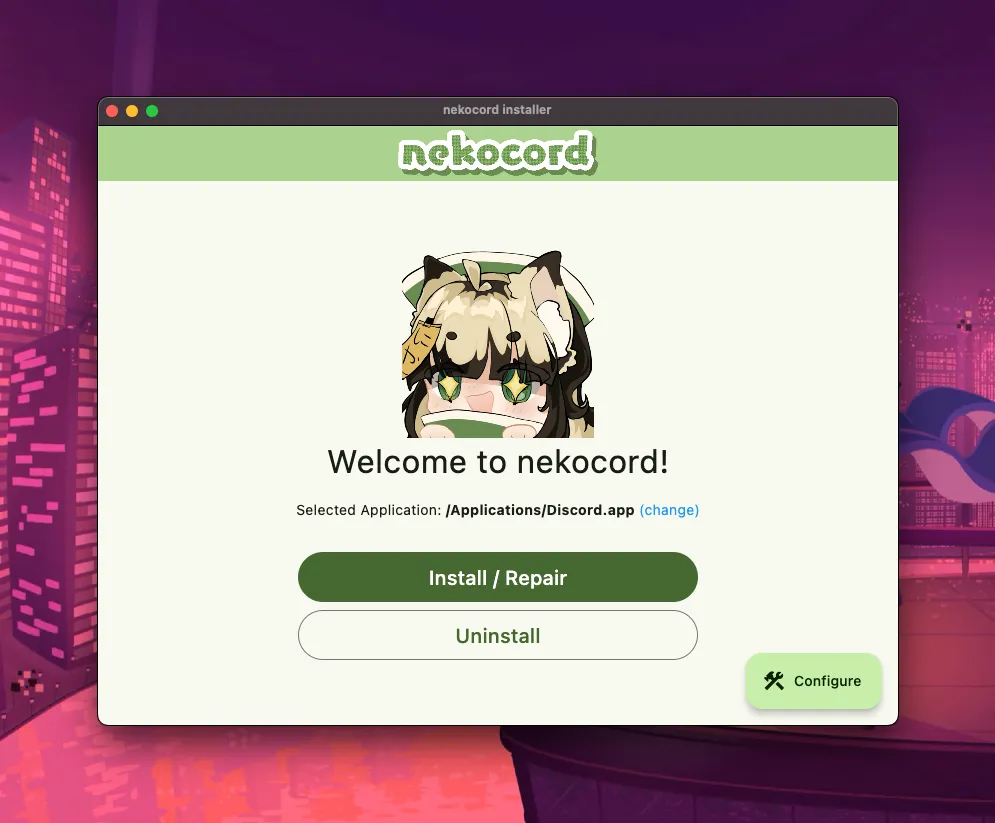
From here, assuming you use the base Discord app, and you just want the stable build of Nekocord, you can just hit the Install / Repair button in the center of your screen!
If you want to configure your Discord location or Nekocord branch, hit the Configure button in the bottom right.
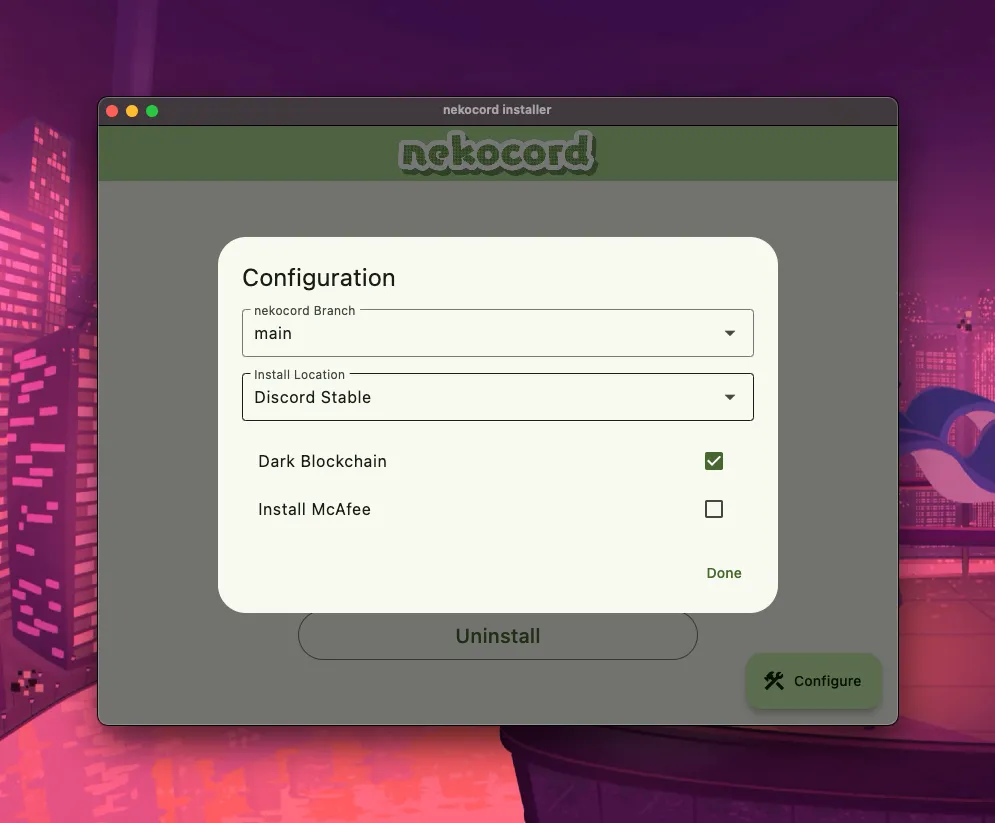
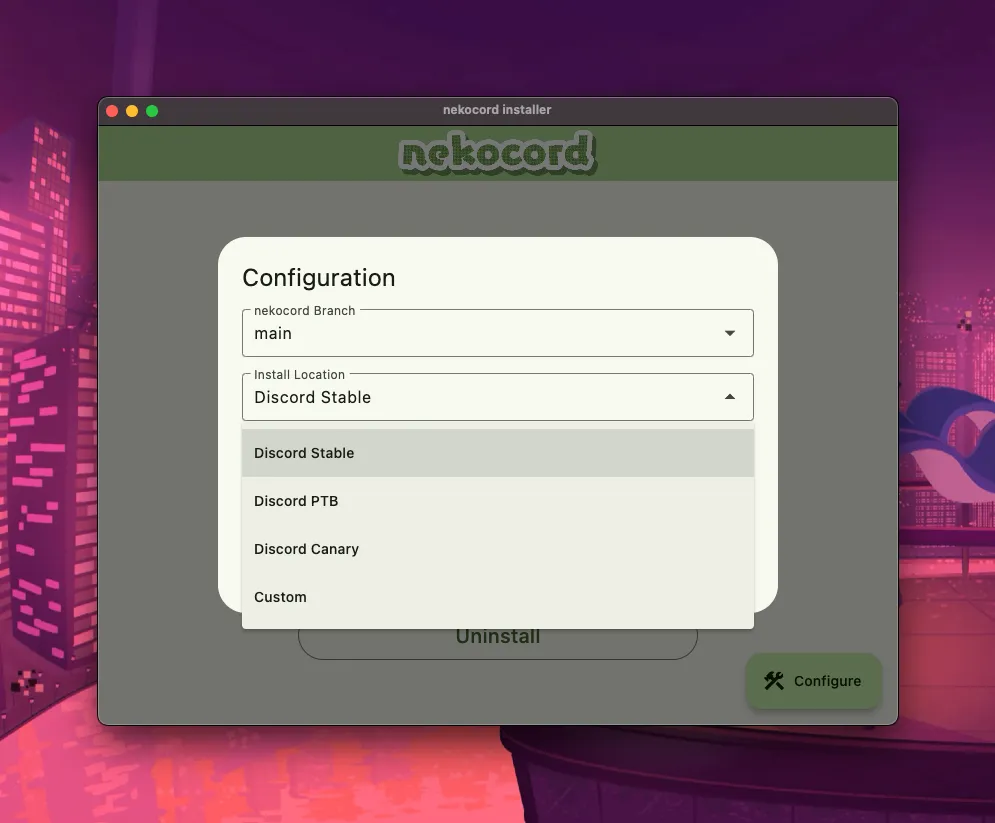
If you want either to use Discord PTB, Canary, or just a Discord in a different location than the one automatically selected, click the dropdown and select your discord branch or Custom
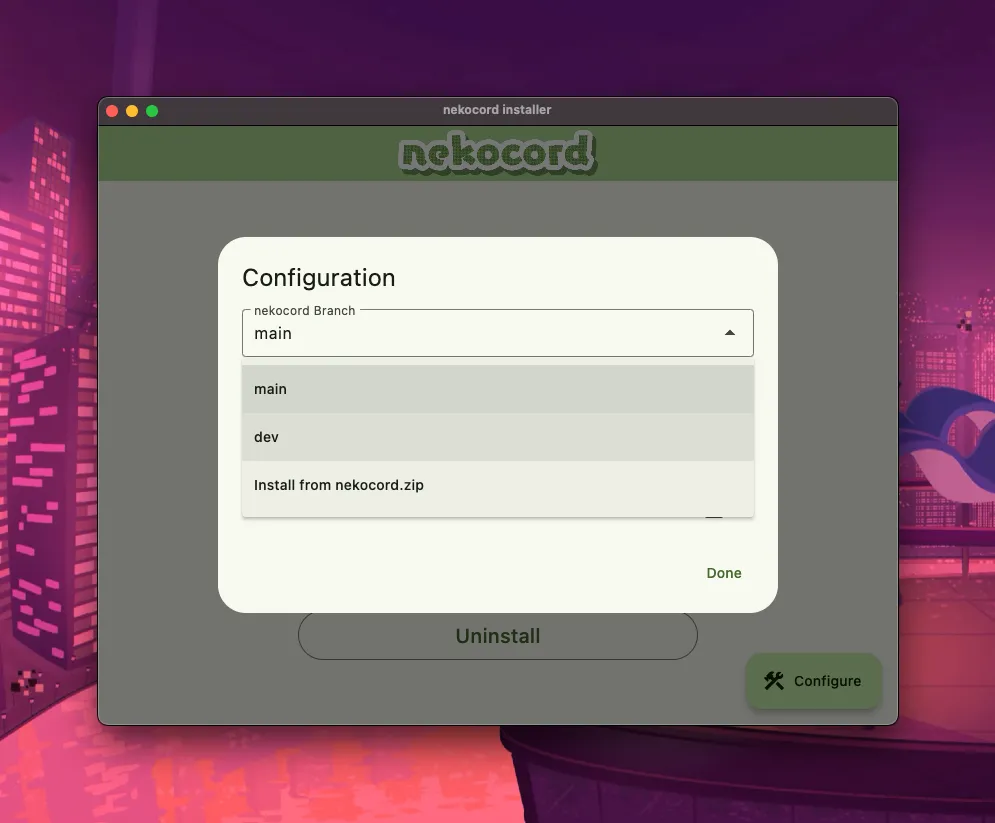
If you want to be in the Dev branch of Nekocord that has more frequent updates, but includes more bugs, click the dropdown and switch from main to dev